Guardrails
Where to find it in the UI
- Sidebar: "Guardrails"
- Tab: "Guardrails"
Purpose
Guardrails protect requests before they are sent to an LLM provider.
They are used to mask sensitive information, block unsafe input, and enforce safety policies.
Guardrail Types
LLMrouter supports multiple guardrail types, including redaction and content safety mechanisms.
Initial State
When first visiting the Guardrails page:
- No guardrails are assigned to API keys by default
- Guardrails are inactive until explicitly assigned
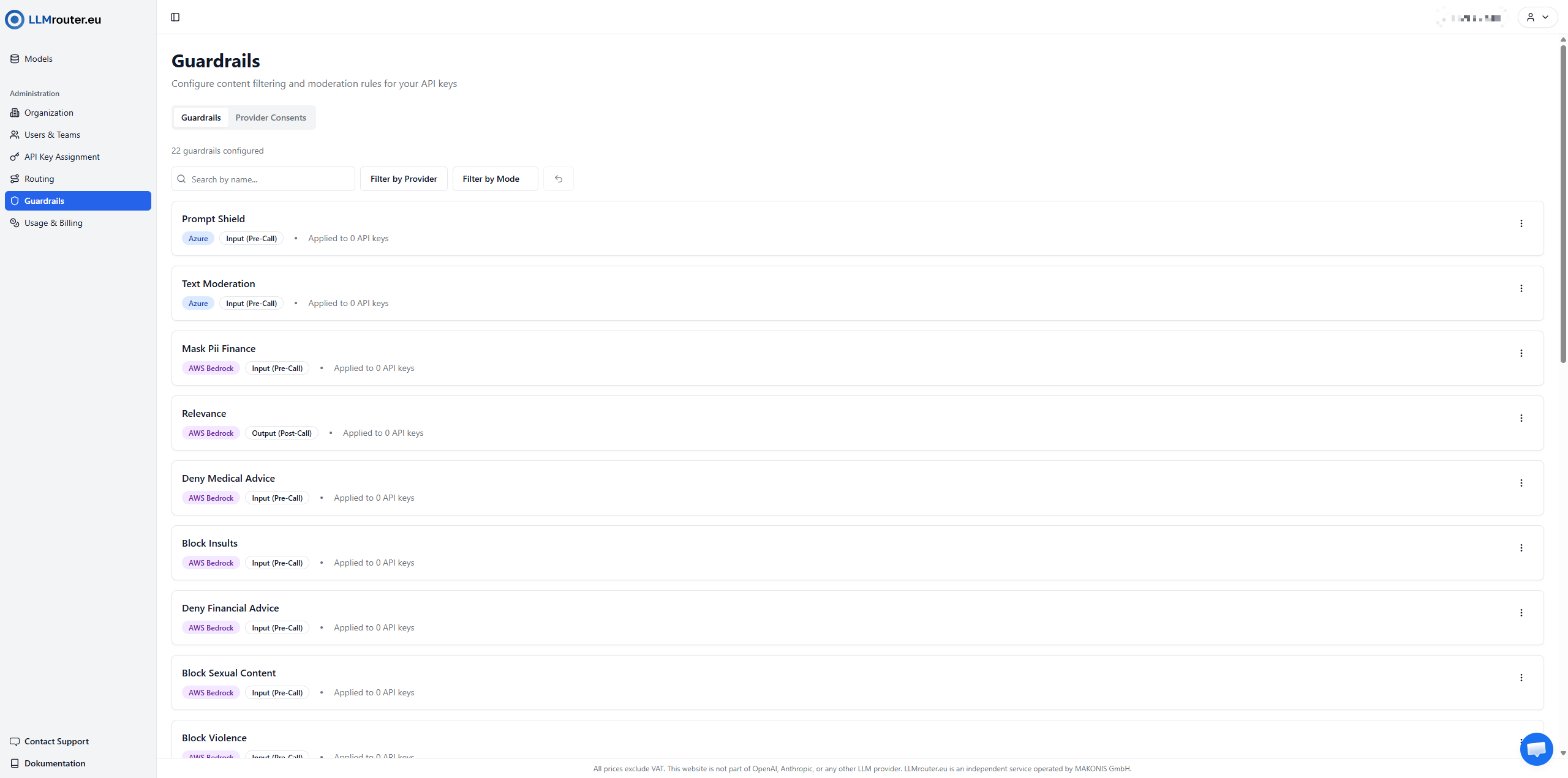
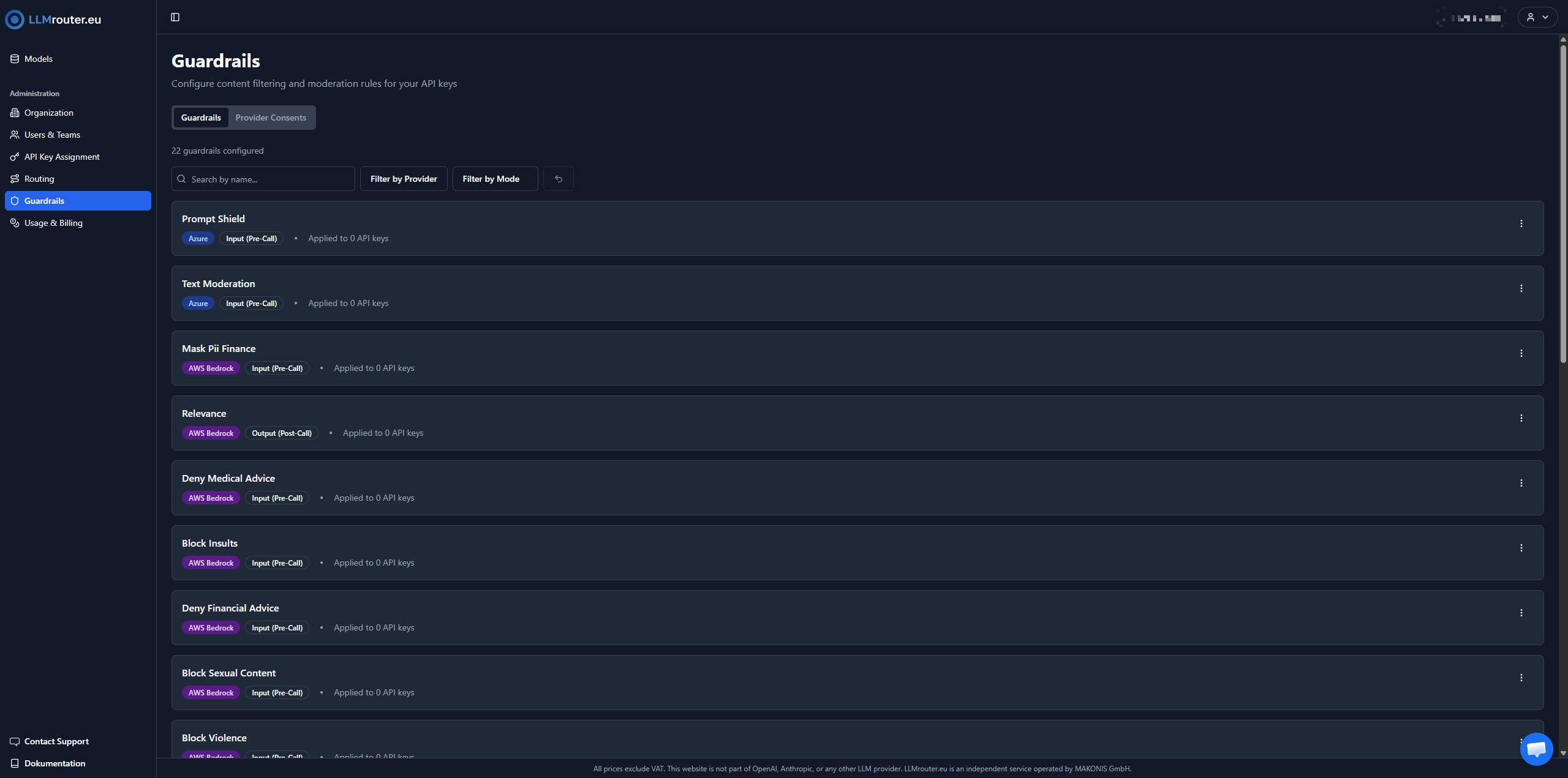
Figure 1: Guardrails Overview
Apply Guardrails to API Keys
Guardrails are enforced per API key.
To activate a guardrail, it must be explicitly assigned to one or more API keys.
Where to apply
You can apply a guardrail directly from the Guardrails overview:
- Open Guardrails.
- Find the guardrail you want to apply.
- Click the Actions menu.
- Select Apply to API Key.
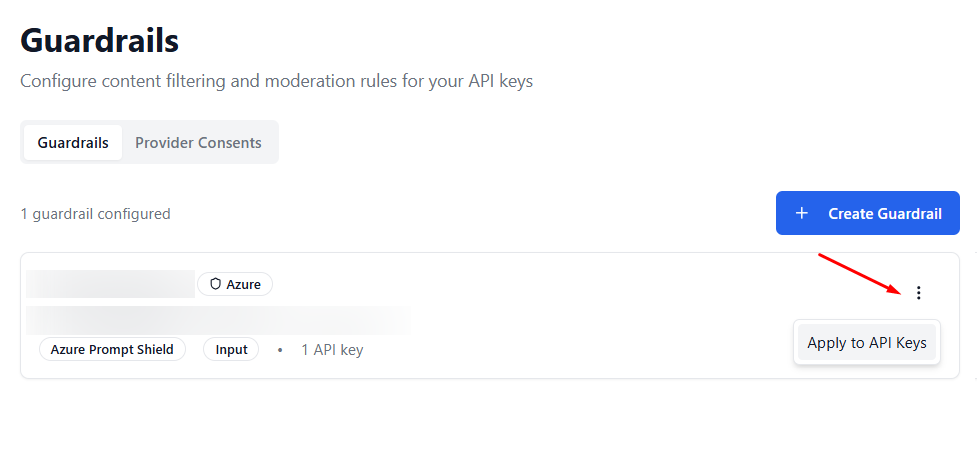
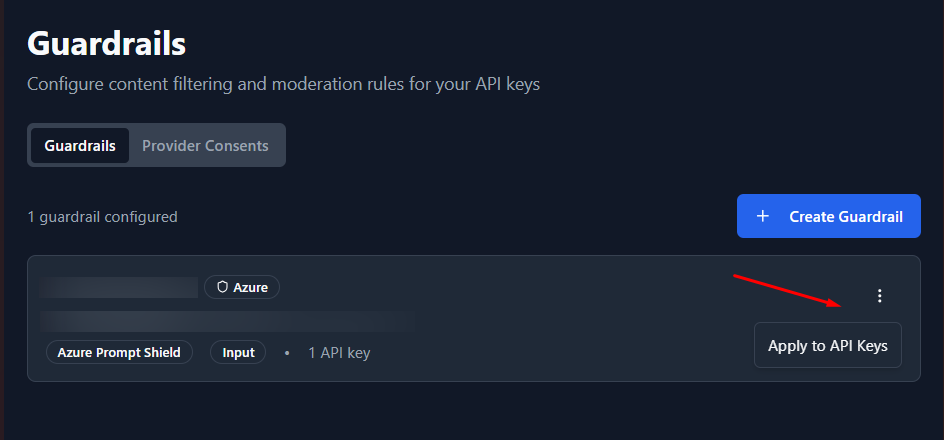
Figure 2: Accessing “Apply to API Keys” from the Guardrails list
- If you have not yet agreed to a provider, you must accept it before you can apply guardrails.
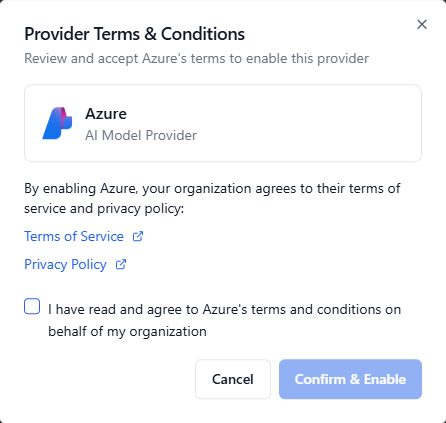
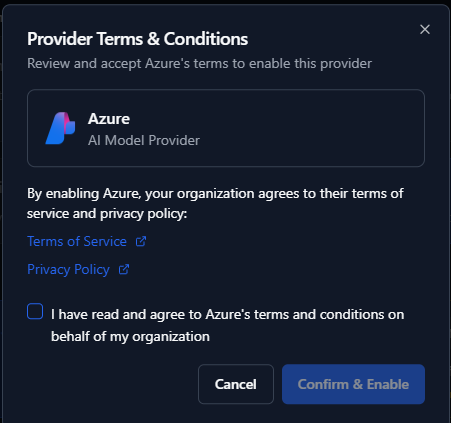
Figure 3: Guardrail Consent Dialog
Apply Dialog
The Apply Guardrail to API Keys dialog allows you to assign or unassign the selected guardrail to multiple API keys at once.
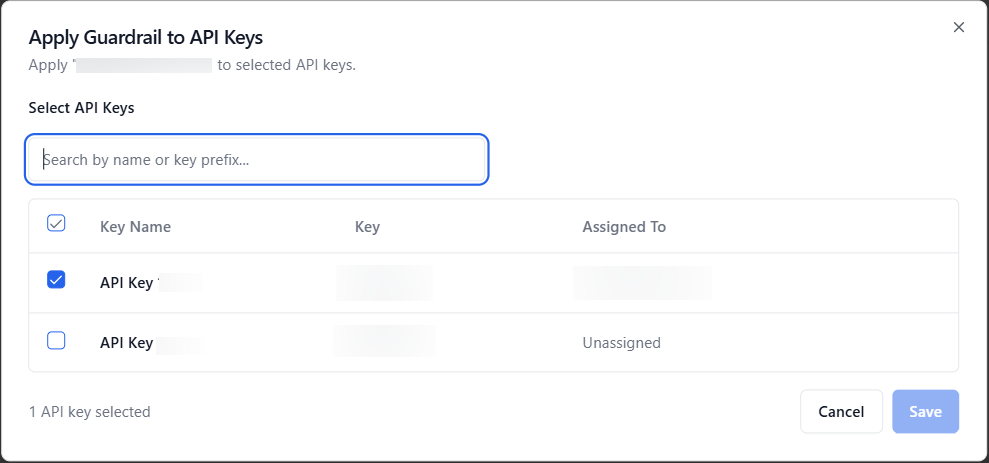
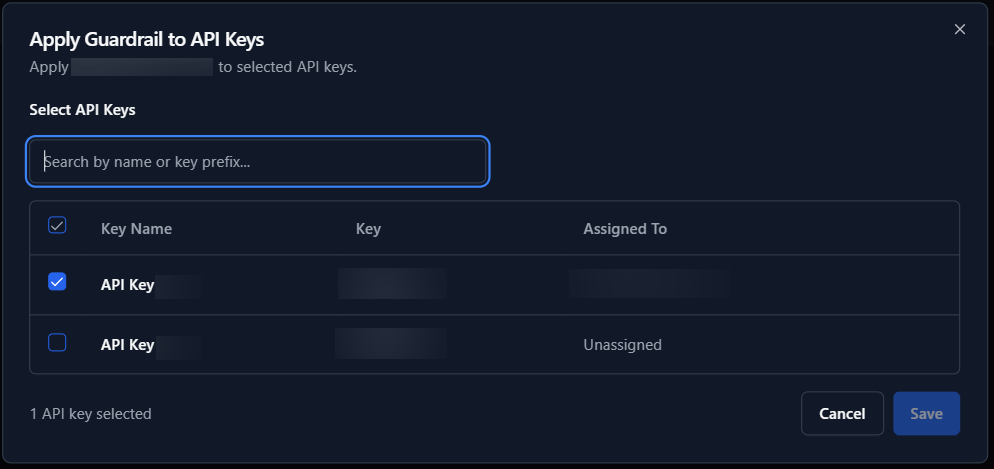
Figure 4: API Key options
- The list shows all available API keys
- You can search API keys.
- Select Api keys and click save.
Assigning Guardrails to an API Key
To assign a guardrail:
- Navigate to the API Key Assignment section in the LLMrouter dashboard.
- Locate the API key you want to apply the guardrail to.
- Click the more actions menu.
- Click “Manage guardrail for this API key.”
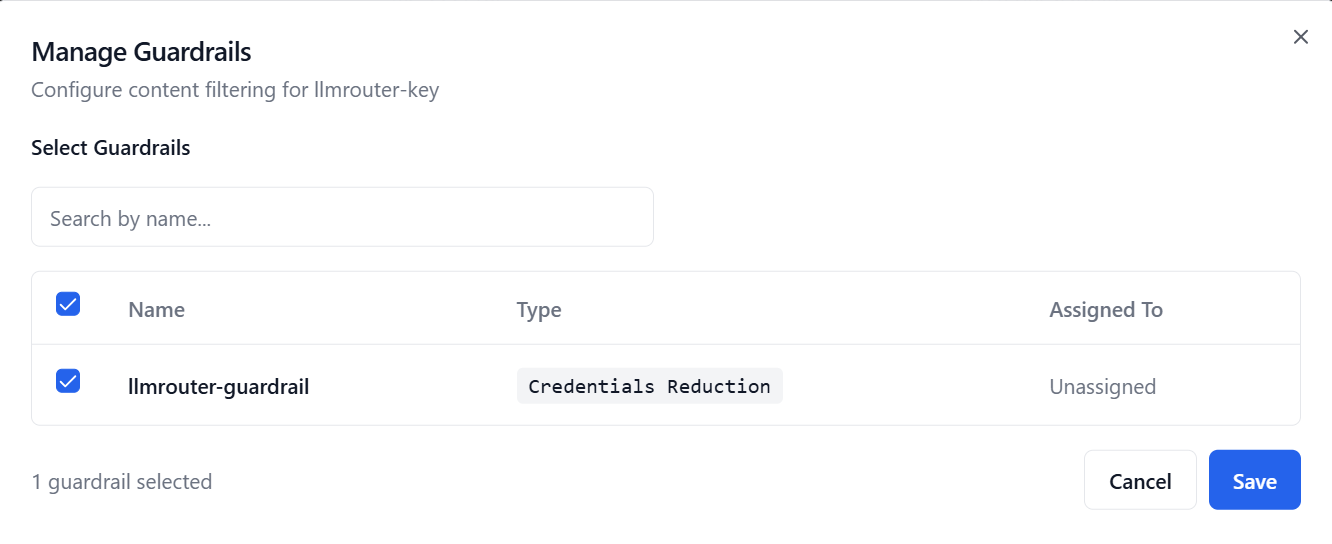
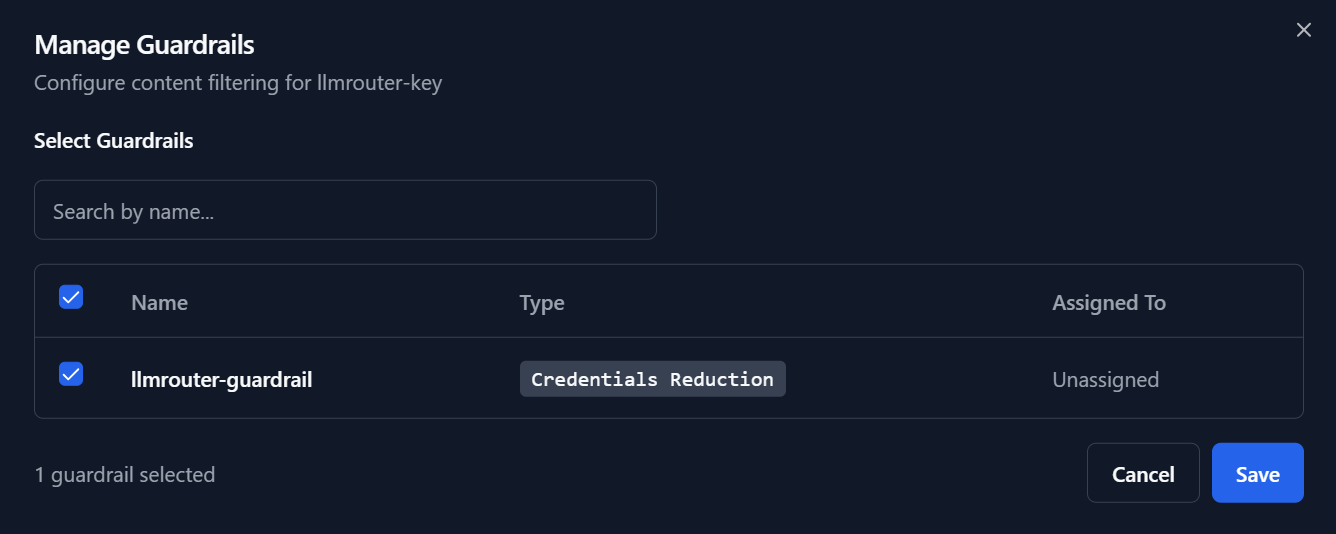
Figure 5: Guardrail options
After saving:
- The guardrail becomes active for the selected API keys.
- All requests made with those keys are evaluated against the guardrail.
- Enforcement starts immediately.
Unassign Guardrails from API Keys
To unassign a guardrail from an API key:
- In the dialog, uncheck the API key you want to remove the guardrail from
- Click Save
The guardrail is unassigned from the API key immediately after saving.